
Flag football play maker
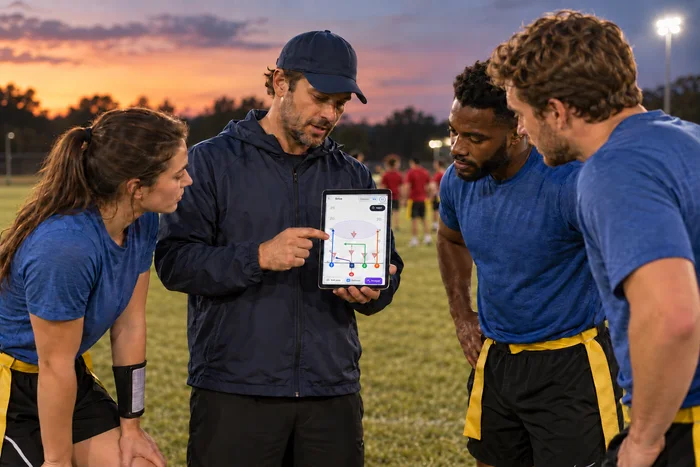
Drag players onto any field from 4v4 to 9v9, NFL FLAG included, draw their routes, and give each player a one-line callout. Save the play as a sheet your players can read, or print wristband play cards at true size on regular 8.5 × 11 paper. Draw your defense too, and watch a play run against it. Free, no sign-up, and your plays never leave your browser.
Start from a 5v5 play
Showing plays for the current play’s format; change the Format to see the others. Tap a play to add it after the current one, then change anything you like. Every ReadyRef play has a write-up with the QB’s read and an IFAF rules check.
Defenses drawn on the current play’s field, against the standard formation. Tap one to add it after the current play, then move the defenders, change their jobs or draw your own. Each has a write-up with every defender’s job.
Plays shared by coaches, for the current play’s format. Search by play or by coach, then tap one to add it after the current one. Browse them on the website.
Start from a formation
Players only, no routes yet. Tap one to add it after the current play, then draw the routes.
The play as one image to send your team: the title, the field, and a callout telling each player their job. Leave a callout empty to skip that player. Players with the same callout share one line.
How to use the play maker
- Pick a format: 4v4, 5v5, NFL FLAG 5v5, 6v6, 7v7, 8v8 or 9v9. The 5v5 and 7v7 fields match IFAF sizes: 25 yards wide for 5v5 and 30 yards wide for 7v7. NFL FLAG 5v5 uses the NFL FLAG rulebook's 25-yard width and can show its no-run zones at midfield and the goal line. The other formats have no single rulebook, so they use common recreational widths: 25 yards for 4v4, 30 for 6v6, 35 for 8v8 and 40 for 9v9. A standard formation loads so you're not starting from nothing.
- Simulate or Edit. The switch above the field picks what the screen is for. Simulate is for watching: the field is view-only and a tap plays the play. Edit is for drawing, with the players, routes, ball path and the play's settings. Plays you open from the library start in Simulate; a new play starts in Edit. On a phone, Edit opens the full-screen editor.
- Place players. In Edit, drag a position from the row above the field, or tap it and then tap the field. Drag any player to move them. Once every spot is filled, the row says so; remove a player to swap in another position.
- Draw routes. Select a player, choose Draw route, then tap each point of the route. Choose a route (arrow), motion (dashed) or stop-and-sit (T). Tick Curved for wheel and out-and-up style routes.
- Draw a defense. Set Perspective to Defense. The field turns around so you look from the defense's side, and the editing tools work on the defenders. Place them as red triangles: Rusher, Corner, Flat, Middle or Safety. Select one to set its job. A zone defender gets a short or deep zone, a width and an optional drop. A man defender covers the receiver you pick. A rusher goes straight at the QB or along a path you draw, with Hand up (blitz) for the blitz signal. Or use New → Start from a defense for the ReadyRef defenses, like Cover 1 man, the 3-1 zone or Cover 2. To print a play as a defense play, set Play type to Defense play in Edit's settings.
- Run a play against a defense. On an offense play, tick Show Defense and pick one in Run against. It shows faded behind your play, so you can see where the open space is, and it moves when you watch the play run. Untick Show Defense to hide it again; the play keeps it.
- Analyze play. Tap Analyze play to grade an offense play against every defense in your playbook and ReadyRef’s, or a defense against every play. Each matchup runs in ReadyRef’s simulator at all three defense levels and from both sides of the field, and comes back Strong, OK or Tough with the reason (who got open, or who was covered). Tap a matchup to watch it run. It’s a guide, not a guarantee.
- Read the depth off the field. The tick marks are one yard apart and the big numbers count yards from the line of scrimmage, so "push 5 yards, then cut" is easy to draw and easy for a player to read.
- Show where the ball goes. Tap Ball path at the end of the position row, then tap each stop: the QB for the snap, then the runner for a handoff or the receiver for the pass. It draws as a grey dotted line, separate from the players' routes.
- Or start from a play. Start from a play adds any of the free library plays (double slant, flood, smash, trick plays and more), or search the plays other coaches shared, so you can change them instead of drawing from scratch.
- Build your playbook. + New play adds the next number; Duplicate copies a play so you can build its mirror or a variation. Move plays earlier or later to group them, for example 1–4 quick passes and 5–8 runs.
- Give each player a callout. Tap Create play sheets and type a short job for each player ("Sell the fake", "Run your route hard to clear the defender"). The play sheet shows the title, the field and every callout, and players with the same job share one line. Tap Save as image to share it, or Print play sheets for practice handouts.
- Watch it run. In Simulate, tap the field or ▶ Watch it run to see the play animated: the snap, every route, and the ball going where your ball path sends it. Defenders move too: zone defenders drop and break on the throw, man defenders trail their receiver, and rushers chase the ball carrier. Tap the field to pause, step through it with ◀ ▶, and tap ⇅ Flip to see the same moment from the other side of the ball. Defense Difficulty sets how quickly the defense reacts: Easy (Youth), Medium (Rec) or Hard (Competitive). Tick QB decides and the QB throws to the most open receiver instead of the one you drew; step through his other options with ‹ Option 2/3 ›. In Edit, ▶ Test runs the play exactly as drawn.
- Send it to your team. Tap Save as GIF to turn the animated play sheet into a GIF. On a phone, Share GIF sends it straight to a Messenger, WhatsApp or text group chat; on a computer it downloads. Players can watch their route before practice.
- Tap Create wristband cards, pick your wristband size and how many plays go on each card (1 to 12), then print. The card previews update as you draw. Print at 100% and cut on the lines.
- Print the coach’s call sheet. A full page with the same numbers, bigger diagrams and your note on each play, with offense and defense plays in their own sections. You call the number, and the players read the same play on their wrist.
Everything saves in your browser as you go. Copy share link sends the whole playbook to an assistant coach or a parent helper. Save to ReadyRef keeps it in a free account, so it’s on your phone at the field and safe for next season.
What the symbols mean
Every position has its own shape, letter and colour, so a card printed in black and white still reads correctly:
- C: center, a square
- QB: quarterback, a filled circle
- X, Y, Z: receivers, open circles
- RB: running back
- H, F: extra receivers for 6v6 and 7v7
- Solid arrow: route · dashed: motion · T: the route stops and sits in open space. Flag football has no blocking, so a T never means “block”.
- Grey dotted line: the ball (snap, handoff, pitch or pass)
- Red triangle: a defender. Teal shaded oval: a short zone · purple: a deep zone · dashed line to a receiver: man coverage · arrow: a drop or a rush · raised hand: the blitz signal
- Red dashed line 7 yards off the ball: the rush line, drawn when a defender rushes
You can relabel any player with up to two letters, so your team's own names ("S" for slot, "W" for wing) show up on the card. New to route names? Our flag football route tree explains each one.
Wristband card sizes
Wristbands hold the card in a clear window. These are the common insert sizes the play maker prints:
| Card size | Insert | Cards per sheet |
|---|---|---|
| Flag football insert | 4.00 × 3.00 in | 4 |
| Adult / varsity three-window | 4.75 × 2.75 in | 3 |
| Adult wide | 5.25 × 3.25 in | 2 |
| Youth | 4.50 × 2.25 in | 3 |
| Mini | 3.50 × 2.50 in | 6 |
Is your wristband a different size? Choose Custom size and enter the window’s width and height in inches. Window sizes vary by brand, sometimes by a quarter inch. Print one sheet, cut one card, and test-fit it before cutting the rest. The wristband play sheet guide covers how to number plays and call them from the sideline.
Printing at the right size
- In the print dialog, set Scale to 100% (or Actual size) and turn off Fit to page. This is the usual reason a card comes out too small for the window.
- Each sheet has a 1-inch square in the top corner. Measure it with a ruler. If it isn't exactly 1 inch, the print was scaled.
- Cards sit edge to edge, so each cut is one straight line across the sheet. Crop marks outside the cards line up with each cut, and a paper trimmer makes quick work of it.
- Printing in black and white? Untick Print in colour. Shapes and letters carry the meaning, so nothing is lost.
- Heavier paper or card stock (65–110 lb) holds up better than printer paper and still fits most windows.
Laminating your cards
Sweat and rain ruin paper cards by the second game. To make them last:
- Use thin 3 mil laminating pouches. Thicker 5 to 10 mil pouches make a stiff card that often won't slide into the wristband window.
- Quick: laminate the printed sheet, then cut on the lines. The cut edges are open, but the wristband's sleeve protects them in most weather.
- Fully sealed: choose Custom size and print the cards ¼ inch smaller than the window, laminate the cut cards with gaps between them, then trim leaving ⅛ inch of plastic all round. The finished card is exactly the window size.
- Let inkjet prints dry fully before laminating so the ink doesn't smear. Laser prints can go straight in.
- No laminator? Clear packing tape on both sides works. So do self-seal laminating sheets. And many wristbands already have a vinyl window that keeps a plain paper card dry enough for one game.
Our guide to laminating wristband cards walks through both methods step by step, with pouch thicknesses and no-laminator options.
Frequently asked questions
What size are flag football wristband play cards?
It depends on the wristband. Common insert sizes are about 4 × 3 inches for flag football wristbands, 4.75 × 2.75 inches for adult three-window wrist coaches, 4.5 × 2.25 inches for youth and 3.5 × 2.5 inches for mini bands. Window sizes vary by brand, so print one card and test-fit it before cutting the rest.
Why is my printed play card the wrong size?
Almost always because the print dialog scaled the page. Set the scale to 100% or Actual size and turn off Fit to page. Every sheet from this play maker has a 1-inch square in the corner; measure it with a ruler to confirm the print is true size.
Should I laminate wristband play cards?
It helps with sweat and rain. Use thin 3 mil laminating pouches so the card still slides into the wristband window. The quick way is to laminate the printed sheet and cut on the lines. For fully sealed edges, print the cards a quarter inch smaller, laminate them with gaps between them, and trim leaving an eighth of an inch of plastic. Clear packing tape on both sides works if you don't have a laminator.
Is the play maker free, and is my play uploaded?
It is free with no sign-up. Plays are drawn and saved in your browser. A share link stores the play in the part of the URL after the #, which browsers never send to the website.
What's the difference between Simulate and Edit?
Simulate is for watching a play: the field is view-only, a tap plays or pauses it, and you can change the defense's difficulty, let the QB pick the open receiver, or flip to the other side's view. Edit is for drawing: placing players and defenders, routes, the ball path and the play's settings. Library and shared plays open in Simulate, new plays open in Edit, and the switch is always above the field.
Can I draw a defense?
Yes. Set the perspective to Defense (the field turns around to the defense's view) and place one defender for each offensive player (4 to 9), then give each one a zone, a receiver to cover or a rush. You can also start from one of the ReadyRef defenses, and run any offense play against a defense to watch both sides move. Defense plays print on wristband cards and get their own section on the coach’s call sheet. The rush line is drawn 7 yards off the ball: under IFAF, a defender lined up more than 7 yards off the ball may rush at the snap, and one inside 7 yards waits for a handoff, a fake or a pass. Other rulebooks set their own rush rules, so check your league’s rulebook.
Does it follow IFAF flag football rules?
The 5v5 and 7v7 fields match IFAF: 25 yards wide for 5v5 and 30 yards wide for 7v7. NFL FLAG 5v5 uses the NFL FLAG rulebook's 25-yard width, and its goal setting can show the no-run zone in front of midfield as well as the goal line. IFAF has no 4v4, 6v6, 8v8 or 9v9 format, so those use fields common in recreational leagues (25, 30, 35 and 40 yards wide); check your league's field size. The editor flags a few IFAF issues, such as more than one player in motion or a rusher lined up inside 7 yards, but it doesn't block anything, so it also works for leagues with their own rules.
Can my AI assistant draw a play for me?
Yes. Tap Describe your play, copy the prepared prompt into ChatGPT, Claude or another assistant, then bring its ReadyRef play code back here. Preview the drawing and rule checks before adding it to your playbook. It uses your own AI account, with no connector or ReadyRef sign-up. You can also use our free MCP connector for direct draft links. Ways to use your AI assistant.